

Resize cutters in the Designer, not in your slicer
Scaling a downloaded cutter in your slicer also scales its blade, so change Size in the Designer and download again instead.
To make a cutter bigger or smaller, change Size in Cookiecad Designer and download the file again. Scaling the downloaded file in your slicer (the program that prepares a model for your 3D printer) resizes every part of it, including the blade: a cutter scaled to 50% has a blade half as thick as the one you set.
What scaling in a slicer changes
A slicer's scale tool multiplies every dimension of the model by the same amount. The file is one solid shape to the slicer, so it cannot tell the outline you want to resize from the blade you want to keep. Blade thickness, blade depth, the sharp tip and the handle rim all change with the outline.
With the Designer's default settings, a downloaded Cutter changes like this:
| Setting | Downloaded file | Scaled to 50% | Scaled to 150% |
|---|---|---|---|
| Blade thickness | 0.8 mm | 0.4 mm | 1.2 mm |
| Blade depth | 12.5 mm | 6.25 mm | 18.75 mm |
| Chamfer tip width | 0.4 mm | 0.2 mm | 0.6 mm |
| Chamfer height | 2 mm | 1 mm | 3 mm |
| Base width | 4 mm | 2 mm | 6 mm |
| Base height | 3.5 mm | 1.75 mm | 5.25 mm |
The table shows setting values. When Cookiecad builds the file, it adds 0.005 mm to a blade width that falls exactly on a 0.1 mm step, so a slicer may measure the default blade as 0.805 mm. That small amount scales with everything else.
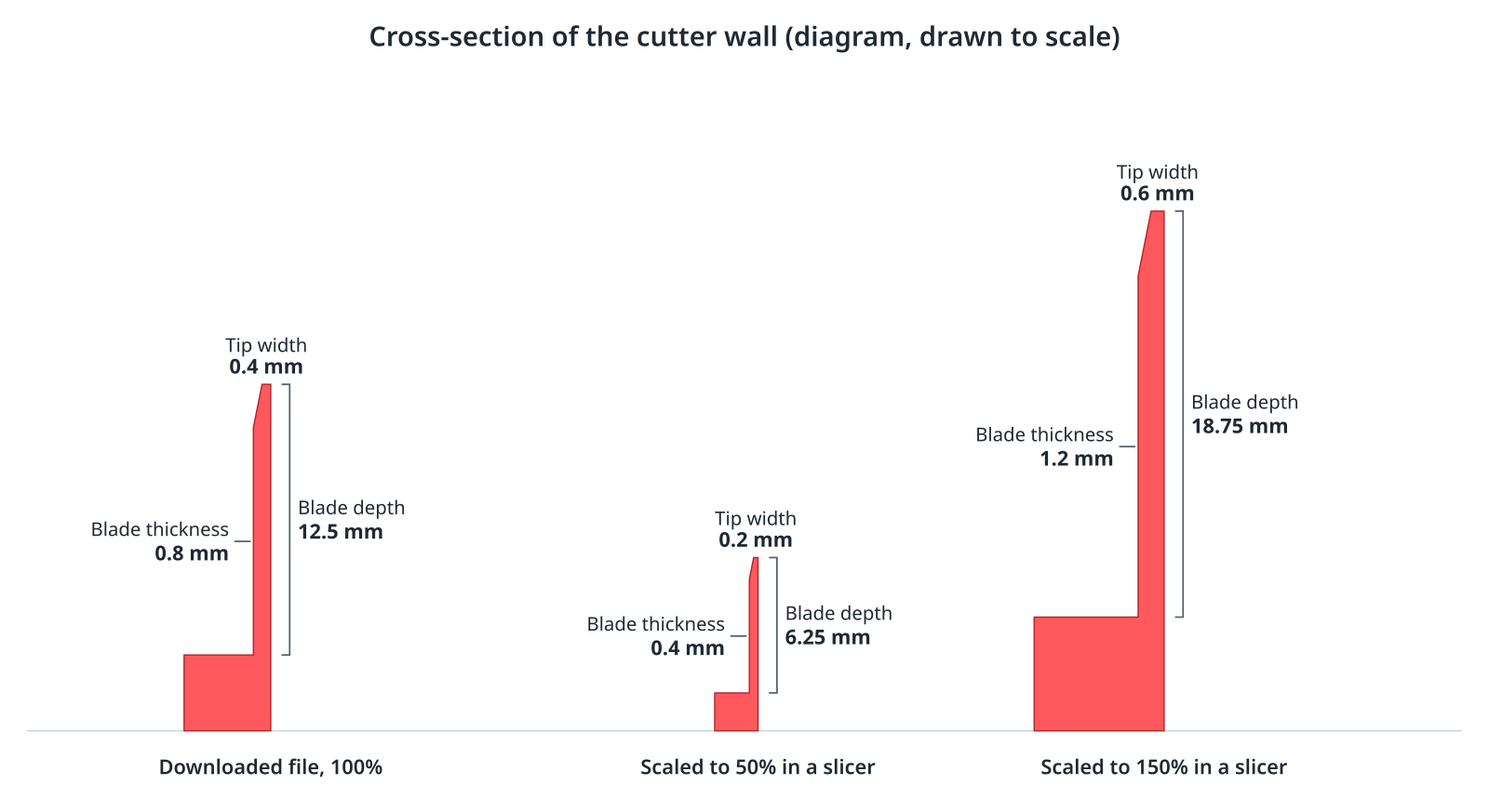
None of the scaled values appear anywhere in the Designer. The settings you checked before downloading no longer describe the file you print. Imprint details, wall text and every other part of the model scale the same way.
Stretching in one direction
Scaling width and height by different amounts changes the walls unevenly. Stretch a square cutter to 150% in width only, and its left and right walls become 1.2 mm thick while its front and back walls stay 0.8 mm. On a curved outline the thickness changes gradually around the shape.
Resize in the Designer instead
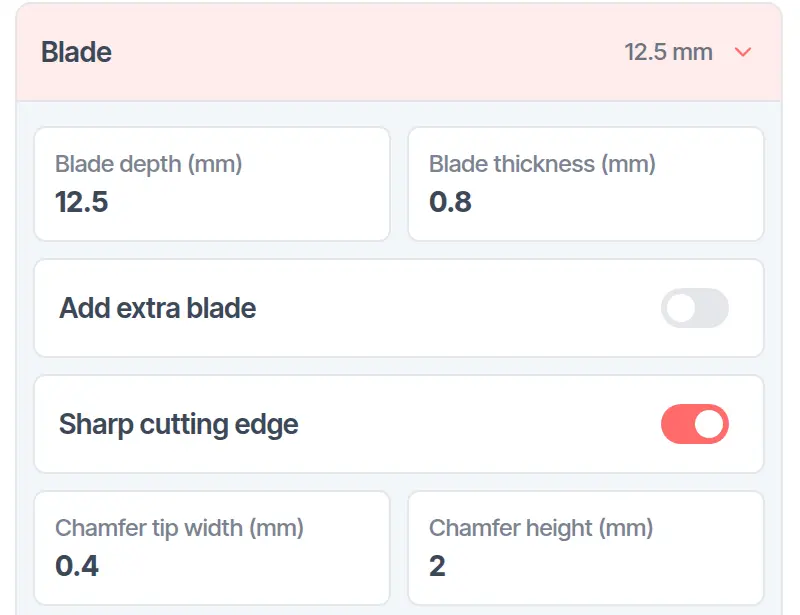
The Designer sizes the outline first and then builds the blade on it, so Blade thickness (in V7, Thickness in the Blade section), Blade depth (in V7, Depth) and the other Blade and Handle settings keep the values you set at every size.
- Open the design in Cookiecad Designer.
- In the Size section, enter the length of the longest side in Size, in millimeters or inches.
- To set both dimensions instead, choose Width and height in Set size of, then enter Width and Height.
- Check the preview, then select Download STL. Downloading requires signing in.
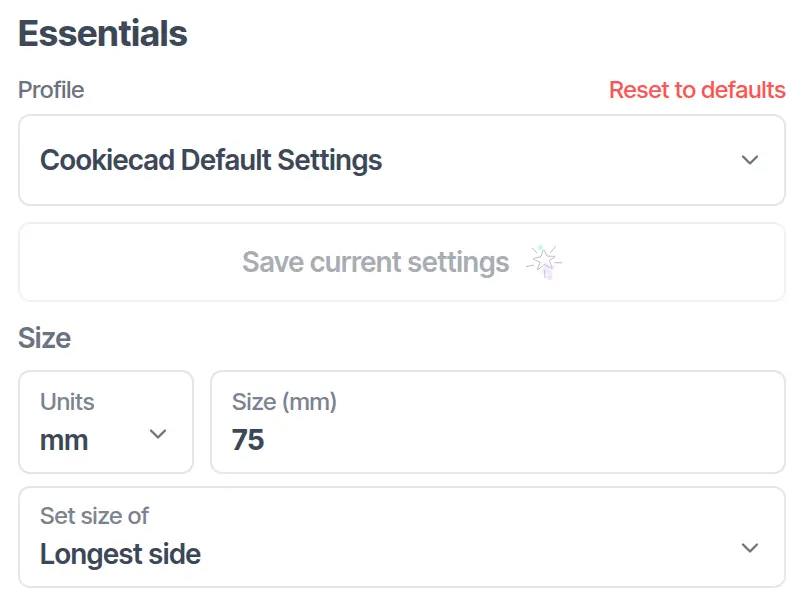
The Blade section shows the same values whatever size you choose.
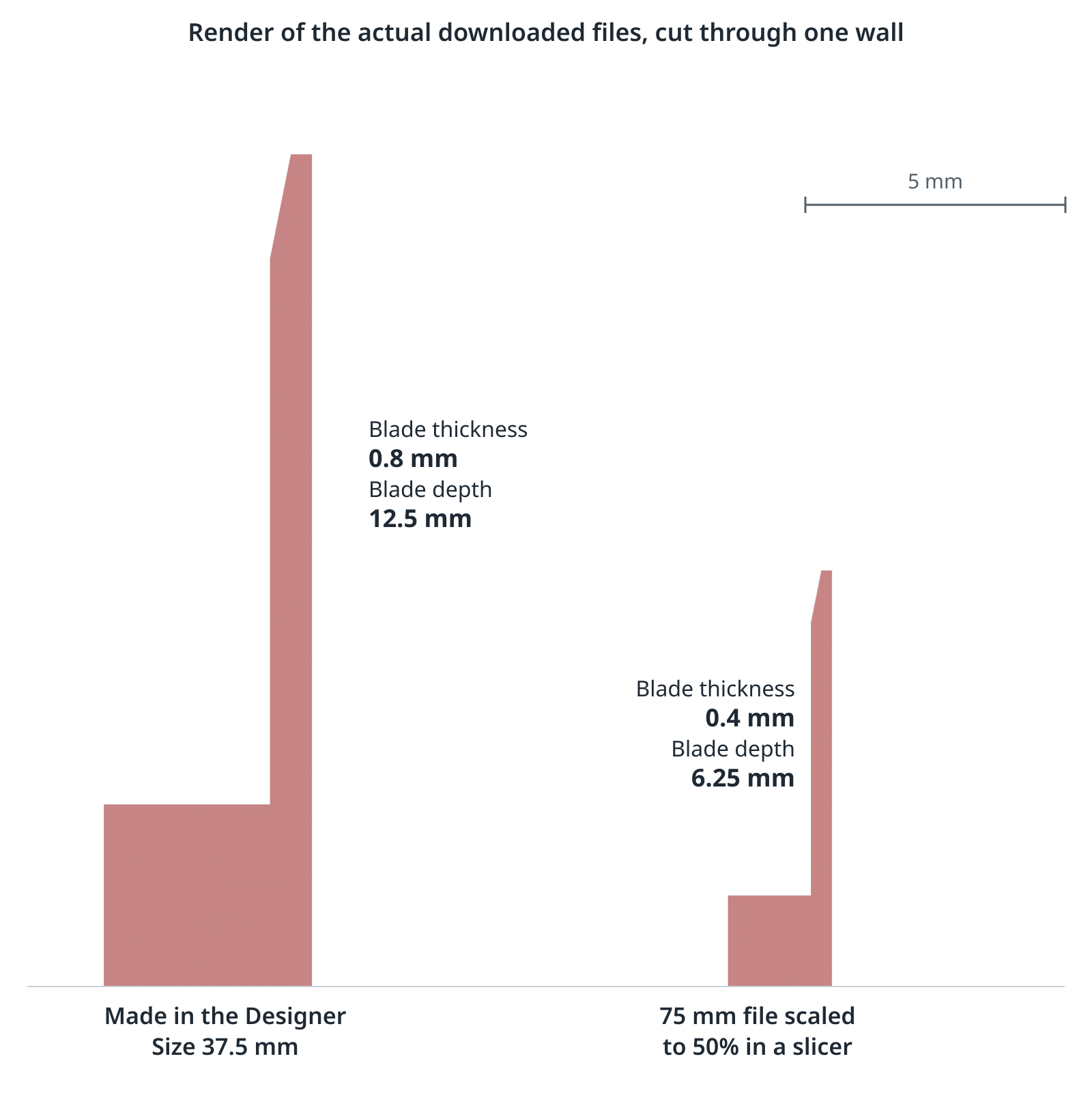
Here is the difference in two real files. On the left, a square cutter made in the Designer at Size 37.5 mm. On the right, the same square downloaded at 75 mm and scaled to 50%. Both are about the same size across, but only the Designer's file has the blade that was set.
Size sets the cutting outline. The handle rim, set by Base width, sits outside the outline, so a cutter with Size 75 mm and the default 4 mm rim measures 83 mm across in your slicer. That is expected; leave the slicer's scale at 100%.
Make the same cutter in several sizes
Download one file per size:
- Set Size to the first size you need and select Download STL.
- Change Size to the next size and select Download STL again.
- Repeat for each size.
Each file is built with the same blade and handle settings at its own size. See Size for the sizing options and Blade Settings for what each blade control does.